Office 365 Sensor – Bitdefender TechZone
2026-09-10
Office 365 Sensor detects phishing, compromised account abuse, and exfiltration in Microsoft 365 invisible to endpoint agents. Monitors Exchange, SharePoint, OneDrive for configuration changes, forwarding rules, and anomalous activity. Response actions: delete campaigns, disable accounts, reset passwords.
Most intrusions involve a compromised account, and the mailbox where the phish that steals it lands runs in Microsoft's cloud, where no endpoint agent can follow. Verizon's 2026 Data Breach Investigations Report finds stolen credentials in the chain of 39% of breaches, and email is still where nearly all social engineering arrives. The Office 365 Sensor gives Bitdefender GravityZone eyes inside Microsoft 365, turning account activity and email events into detections that feed the Correlation Engine for XDR, and it often carries the earliest signal in an incident.
What the Office 365 Sensor Collects and Detects
The Office 365 Sensor connects GravityZone directly to your Microsoft 365 environment; no additional software is needed. It monitors accounts, Exchange Online email activity, and file activity in SharePoint and OneDrive.
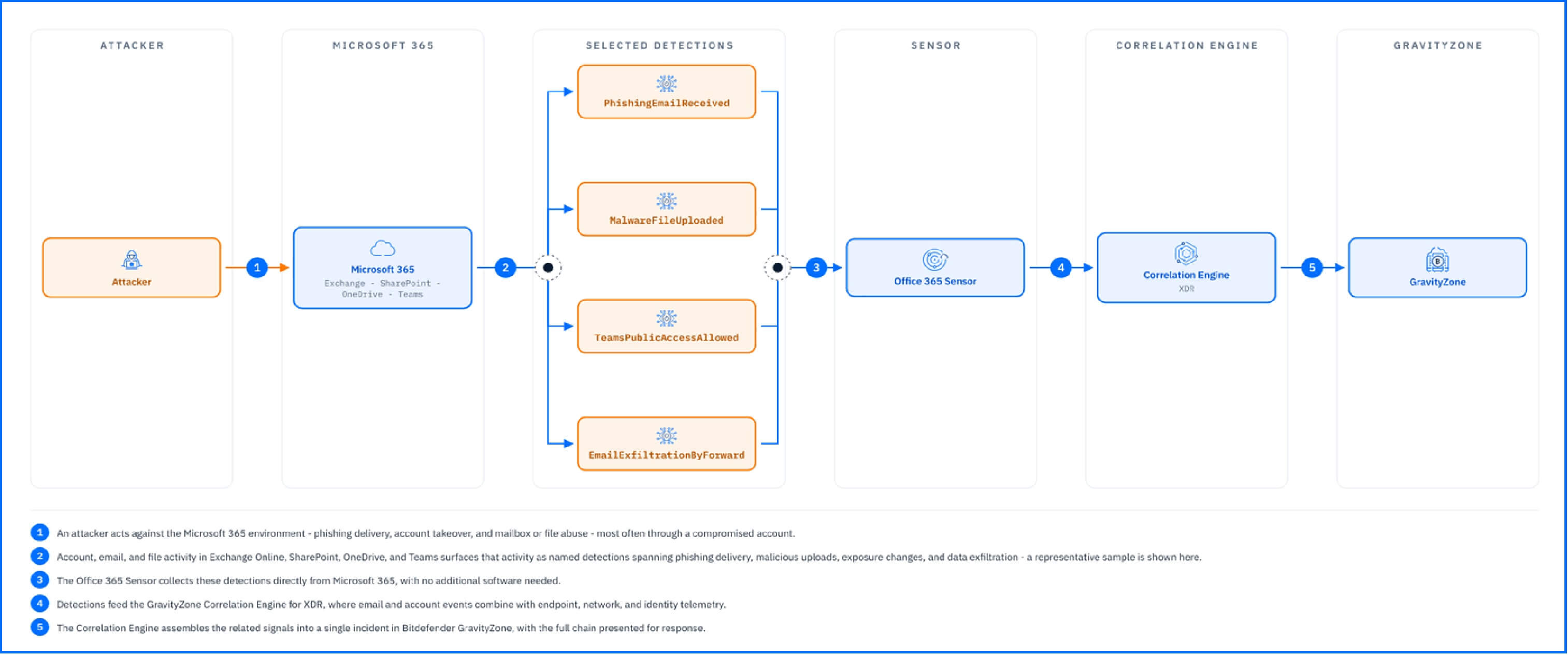 |
The sensor's detections, mapped to the MITRE ATT&CK framework, span the attack lifecycle from weakened defenses through phishing delivery and account takeover to data theft. A few examples show the range:
Weakened defenses: an account whose anti-phishing protection has been turned off, removing a safeguard before or during an attack, raises the AntiPhishingProtectionDisabled alert.
Phishing delivery: emails carrying the traits of a phishing campaign raise the PhishingEmailReceived or SuspiciousEmailReceived or alert, identifying the campaign before it tricks users into revealing their credentials.
Malicious uploads to file sharing: SharePoint and OneDrive are a delivery channel as much as email is; a file uploaded with a double extension, an executable disguised as a document, raises the UploadedFileWithDoubleExtension alert, and known-malicious uploads raise MalwareFileUploaded.
Administrative anomalies: an account performing an unusual frequency of administrative activities in the last day raises the Anomaly.UserAdministrativeActivity alert, the pattern of an attacker using a compromised account to reconfigure the environment. The sensor also watches for the creation of new users without multi-factor authentication and for mailbox permission changes that grant access to other mailboxes.
Exposure changes: a Teams environment opened to public access raises the TeamsPublicAccessAllowed alert, flagging a configuration change that turns an internal collaboration space into an entry point.
Data exfiltration: an email forwarding rule added to an account that sends all messages to an external address raises the EmailExfiltrationByForward alert, a common technique for persistent access to sensitive email after account compromise.
Everything the sensor detects feeds the Correlation Engine for XDR, where email and account events combine with endpoint, network, and identity telemetry; the phishing email that started an intrusion becomes part of the same incident as the process it launched three machines later.
Detections in Practice
The GravityZone Demo Incident walks you through a complete ransomware attack chain, and the Office 365 Sensor raises both its opening alerts and the alert that exposes its spread.
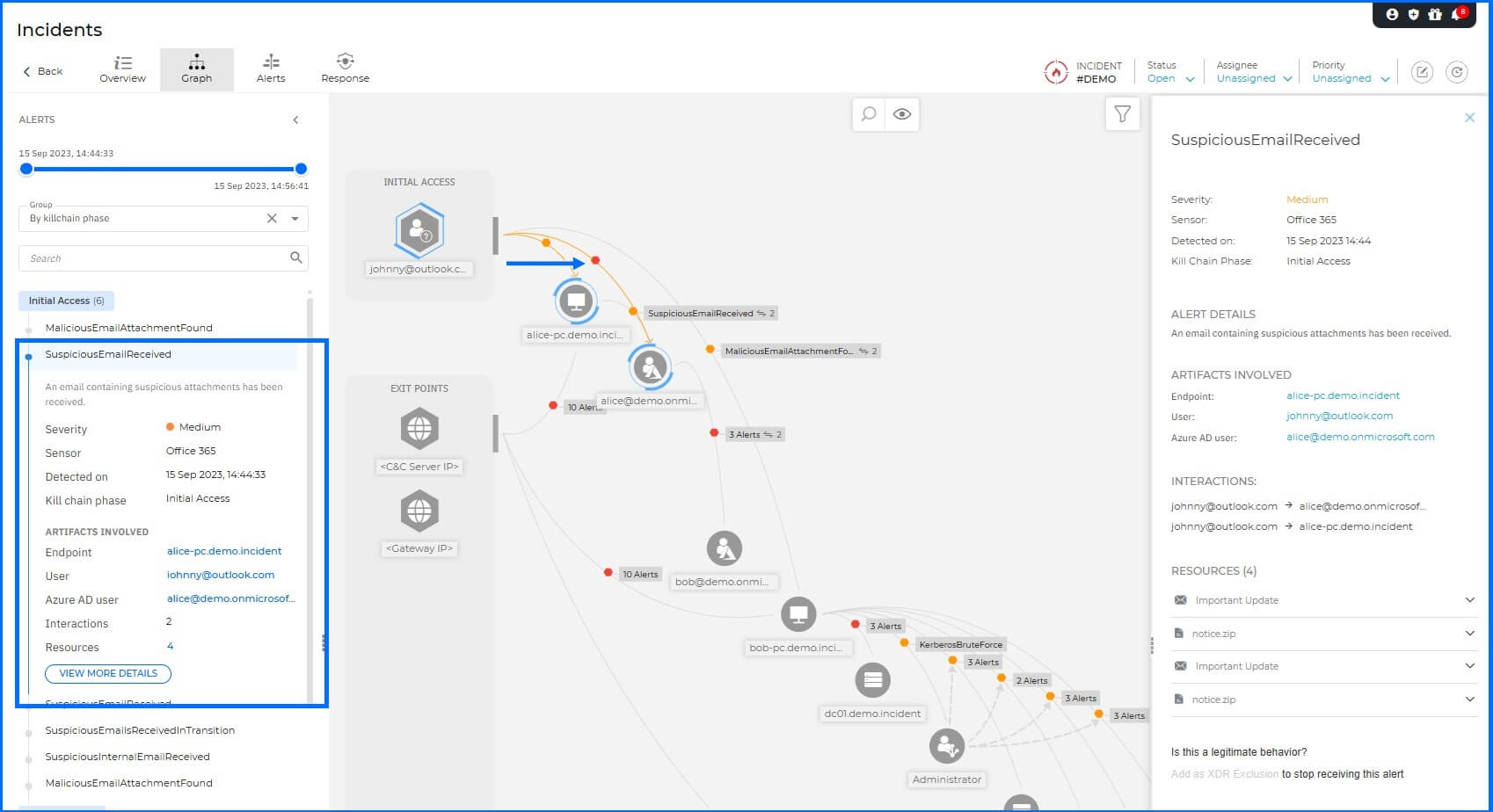
The attack begins in a mailbox. When the external address sends the weaponized message to the first victim, the sensor raises the PhishingEmailReceived and MaliciousEmailAttachmentFound alerts: a malicious file detected on an endpoint was found as an attachment to an email received in the organization. The alert names the sender and the endpoint where the attachment landed, and lists the email subject and the notice.zip attachment as resources, mapped to the Initial Access phase and the Phishing technique. This is the evidence the Correlation Engine uses to identify the phishing email as the incident's root entry point.
 |
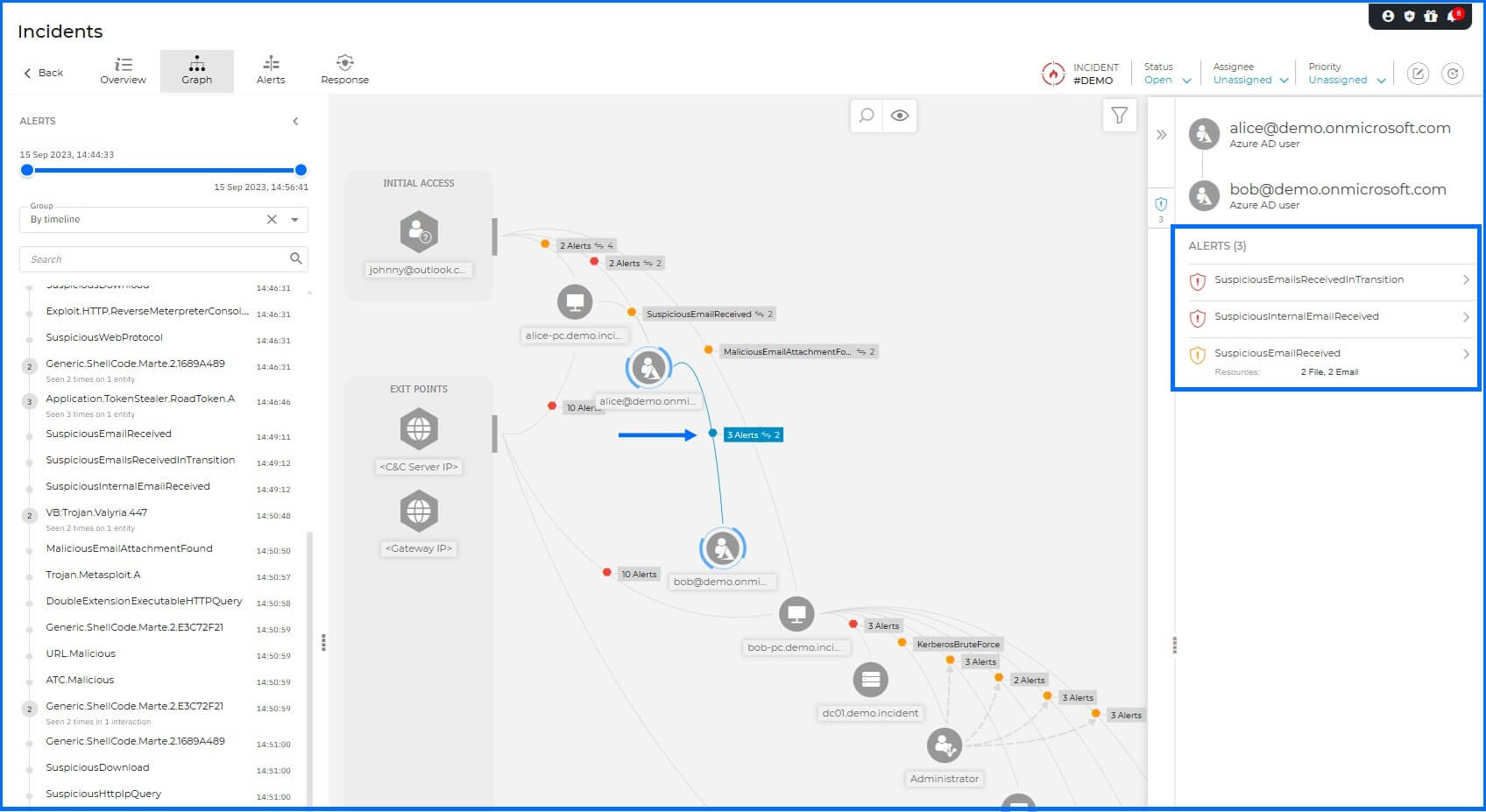
The sensor then catches the attack propagating. The compromised account sends internal phishing to a second employee, and the sensor raises the high-severity SuspiciousInternalEmailReceived and SuspiciousEmailsReceivedInTransition alerts on the connection between the two users, marking the moment the intrusion starts spreading on trusted internal email.
 |
Response Actions
The Office 365 Sensor is one of the sensors that add response actions on the surface they cover. From within an incident, the Threat Response actions available through the Office 365 integration let you delete a malicious email, delete similar emails across affected mailboxes, and delete a file in OneDrive and SharePoint Online. For the account behind the activity, the integration provides the Disable Azure user and Reset Azure user password actions, cutting the attacker's access at its source. Note that disabling or resetting a compromised account stops the attacker, but artifacts they created—forwarding rules, permission changes, external sharing links, API tokens—persist until removed in Microsoft 365 itself. The full action table is in the Threat Response article.
Deployment and Configuration
The Office 365 Sensor uses a direct connection between GravityZone and Microsoft 365; there is no appliance to deploy and no agent to install. Prerequisites and full integration steps are in the Bitdefender Support Center article The Office 365 sensors.
Hands-on Scenarios
The following scenarios demonstrate how you can solve specific challenges using the events the Office 365 Sensor monitors.
Removing a Phishing Campaign from Every Mailbox
One reported phishing email means dozens more are sitting unread in other mailboxes, and asking users to delete them loses the race against the first click. When the PhishingEmailReceived alert fires, open the incident and use the Delete email O365 action on the reported message, then Delete similar emails to remove the campaign's remaining copies from the affected mailboxes. Check the alert's recipient list afterward: any user who opened the attachment before the deletion is your next investigation target on the endpoint side.
Cutting Off an Account Takeover Before It Spreads
A compromised account is most dangerous in its first hours, when the attacker uses its trusted position to phish colleagues, and internal email passes controls that external mail does not. The SuspiciousInternalEmailReceived alert flags the pattern: a phishing message moving between two of your own users. Open the incident to identify the sending account, then respond from the same view: Reset Azure user password or Disable Azure user to lock the attacker out of the account, and Delete similar emails to pull the internal campaign out of its recipients' mailboxes before it lands a second victim.
Stopping Persistent Email Theft via a Forwarding Rule
A compromised account is most valuable to an attacker if it keeps working after discovery. A forwarding rule that silently copies all incoming mail to an external address gives the attacker persistent access to sensitive email. The EmailExfiltrationByForward alert flags when a rule is added to an account that sends messages outside the organization. Open the incident to identify the compromised account, then respond immediately: Disable Azure user or Reset Azure user password to cut off the attacker's access. The forwarding rule itself persists in the mailbox until removed in Microsoft 365; delete it from the account's inbox rules to stop the data flow.
Common Mistakes and Misconceptions
"Email is just the entry point, so the sensor's job ends at initial access"
Delivery is only the first thing the sensor sees. After a compromise it keeps watching the account: the administrative anomalies, permission changes, and exfiltration patterns in the detection list above are all post-access signals. In the Demo Incident, the sensor raises alerts twice, at the initial phish and again when the compromised account phishes a colleague. The entry point is one detection among many.
"If the endpoints are protected, a compromised mailbox will show up there anyway"
An attacker can operate a compromised Microsoft 365 account entirely from their own infrastructure: reading mail, creating forwarding rules, sharing SharePoint files, changing settings. None of it executes code on a managed endpoint, so none of it appears in endpoint telemetry. The endpoint agent sees the attachment only when a user runs it; the account abuse before and after that moment is visible only from inside Microsoft 365.
"The Office 365 Sensor is another email filter"
A mail filter decides whether a message is delivered, and its job ends there. The sensor monitors what happens in the environment: the emails, the accounts, the files, and the configuration changes, and turns them into incident evidence the Correlation Engine can connect to endpoint and network activity. Its response actions work on the same plane, deleting a campaign that was already delivered from every mailbox it reached, which no delivery-time filter can do.