Incident Investigation and Forensics - Bitdefender TechZone
GravityZone integrates Incident Advisor and Extended Root Cause Analysis to reconstruct attack lifecycles across EDR and XDR sensors. This architecture utilizes a centralized correlation engine to map TTPs to the MITRE ATT&CK framework.
While you cannot stop all attacks, you must focus on detecting incidents that manage to evade your prevention and protection technologies. This reality demands an "Assume Breach" mindset, where you shift your focus to the rapid detection and containment of incidents that bypass your perimeter.
An incident is any event that compromises the confidentiality, integrity, or availability of your organization’s assets, services, or data. These events can originate from various sources, including advanced persistent threats (APTs), zero-day exploits, hardware failures, or human error.
Incident investigation and forensics provide the critical telemetry you require to reconstruct an attack's lifecycle. This process helps you build a historical record to identify trends, uncover hidden vulnerabilities, and understand the "how" and "why" of a breach. This granular investigation moves you from a reactive state to a proactive one, allowing you to strengthen your defenses based on actual adversary behavior and minimize your future exposure.
However, sifting through a massive volume of raw security data from disparate sources can be overwhelming. GravityZone Incidents addresses this challenge by providing you with a consolidated platform that correlates events and streamlines your analysis through a unified, actionable view.
Incidents
The Incidents functionality serves as your centralized dashboard to filter, investigate, and act on security events. GravityZone retains these incidents for 90 days, providing you with a deep historical window into detections generated across your infrastructure—from EDR/XDR sensors to custom detection rules and YARA-based on-access scanning.
To streamline your investigation, you can distinguish between two primary incident types:
Endpoint Incidents These represent suspicious activity detected at the individual host level. You will find EDR detections, custom rules, and YARA hits here that require your direct investigation. These are the building blocks of your security telemetry.
Organization Incidents This is where GravityZone’s correlation engine adds significant value. It consolidates multiple endpoint-level events into a single, cohesive incident. If you have an XDR subscription, this view is further enriched with telemetry from your ecosystem of sensors—including Network, Identity, Cloud, Productivity (Office 365), and more—allowing you to see the full scope of a cross-platform attack.
You can manage your investigations through the All Incidents Investigation tab, which features a highly customizable grid displaying all EDR and XDR incidents generated for your managed companies. To optimize your workflow, you can use the Smart Views panel to customize, save, and switch between different loadouts of the Incidents page, ensuring you always see the data most relevant to your current task.
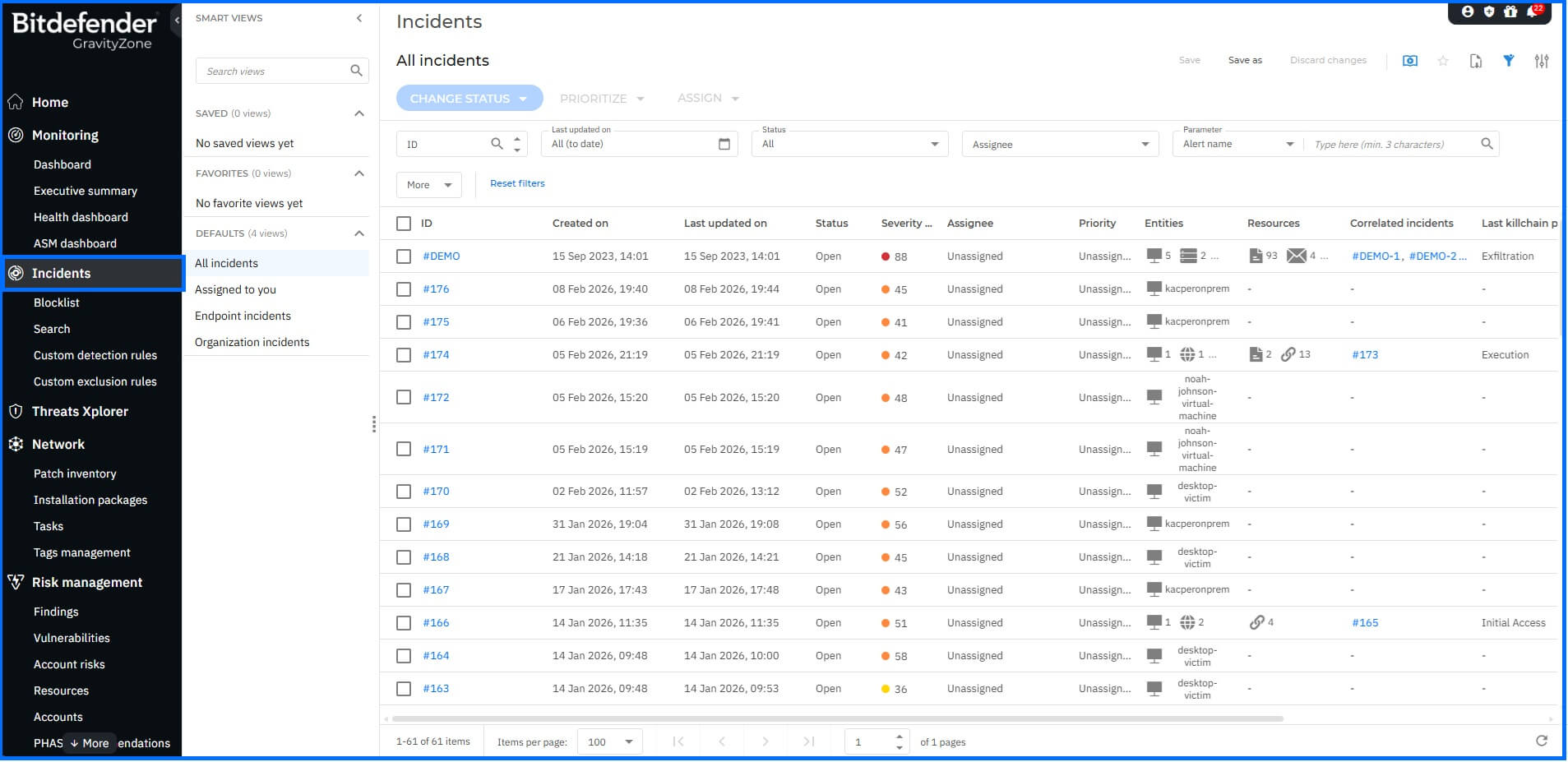 |
To help you focus your efforts, you can prioritize incidents based on their Severity Score. This score indicates how potentially dangerous a security event is; a higher score reflects a greater certainty of a threat. The score provides critical context based on attack indicators and MITRE ATT&CK techniques, allowing you to address the most critical risks first.
If you want to explore these capabilities in a risk-free environment, you can enable the XDR Demo Mode feature. This provides you with pre-configured demo incidents, which are detailed further in our XDR Demo Incident article.

Bitdefender GravityZone root entry of correlated incidents.
Once GravityZone correlates your incidents, only the root entry remains in the grid. Any action you take on this root entry—such as updating the status to Investigating, False Positive, or Closed—is automatically applied to all associated child incidents.
Incident Advisor
We designed GravityZone Incident Advisor to minimize the time you require to investigate and contain threats. It is available specifically for Organization Incidents as your default landing page upon selection, providing you with an intuitive and visually comprehensive overview to answer your key questions:
What happened: A short summary and information about the incident severity score.
Why this incident was generated: It includes mapping to MITRE ATT&CK tactics and techniques used during the incident, along with the Root Cause Analysis.
How this incident has affected the organization: This covers all affected resources based on the information from endpoints and Sensors.
How to respond to minimize the business impact: Provides single-click response across the organization. All the response actions were detailed in the Threat Response article.
Which risk led to the incident: Pinpoints the root causes that led to the incident and reveals all related security risks linked to incident-related entities.
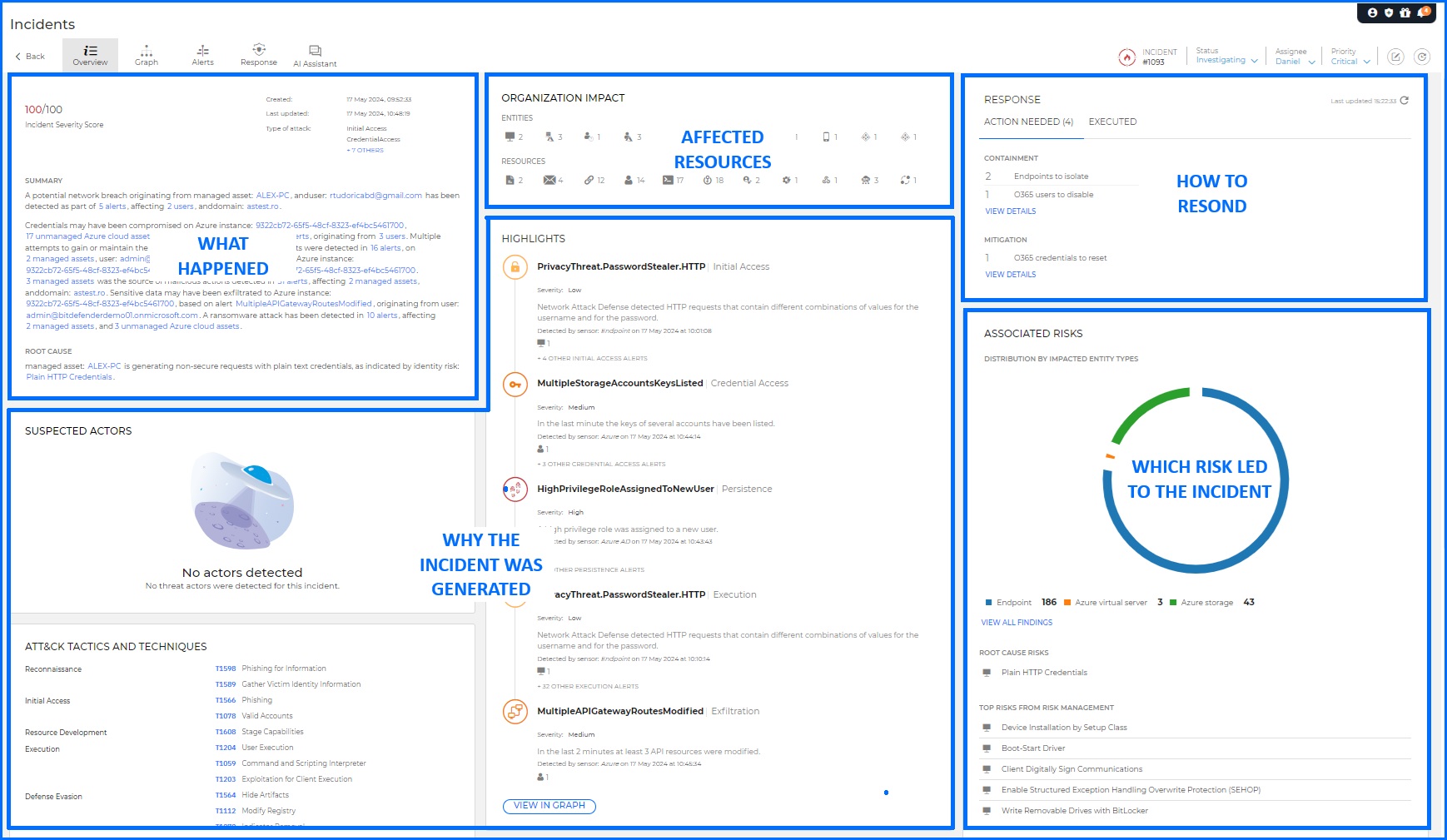 Bitdefender GravityZone Incident Advisor allows security teams to check all the key details about the particular incident. |
Incident Advisor correlates data from multiple sources, presenting it in a format that minimizes the time you need to investigate and respond to the incident. You can export a selected incident into PDF format. This report includes all the information that's included in Incident Advisor, making it a valuable resource for your internal reporting and compliance.
Root Cause Analysis
Root Cause Analysis (RCA) is your primary tool for reconstructing the exact sequence of events during an endpoint-level attack. Driven by the EDR sensor, RCA aggregates telemetry from automated detections (such as Malware Protection and Exploit Protection) as well as Custom Detection and YARA rules. This enables you to move beyond isolated alerts and visualize the full scope of an adversary's presence on a host.
By default, the RCA graph highlights your Critical Path—the prioritized sequence of telemetry starting from the point of network entry down to the specific process or file that triggered the detection. While the graph provides the "bigger picture" of all related elements, the critical path ensures you stay focused on the most relevant events. To refine your view, you can use the Filters menu to isolate or highlight specific elements such as your processes, network domains, or registry modifications.
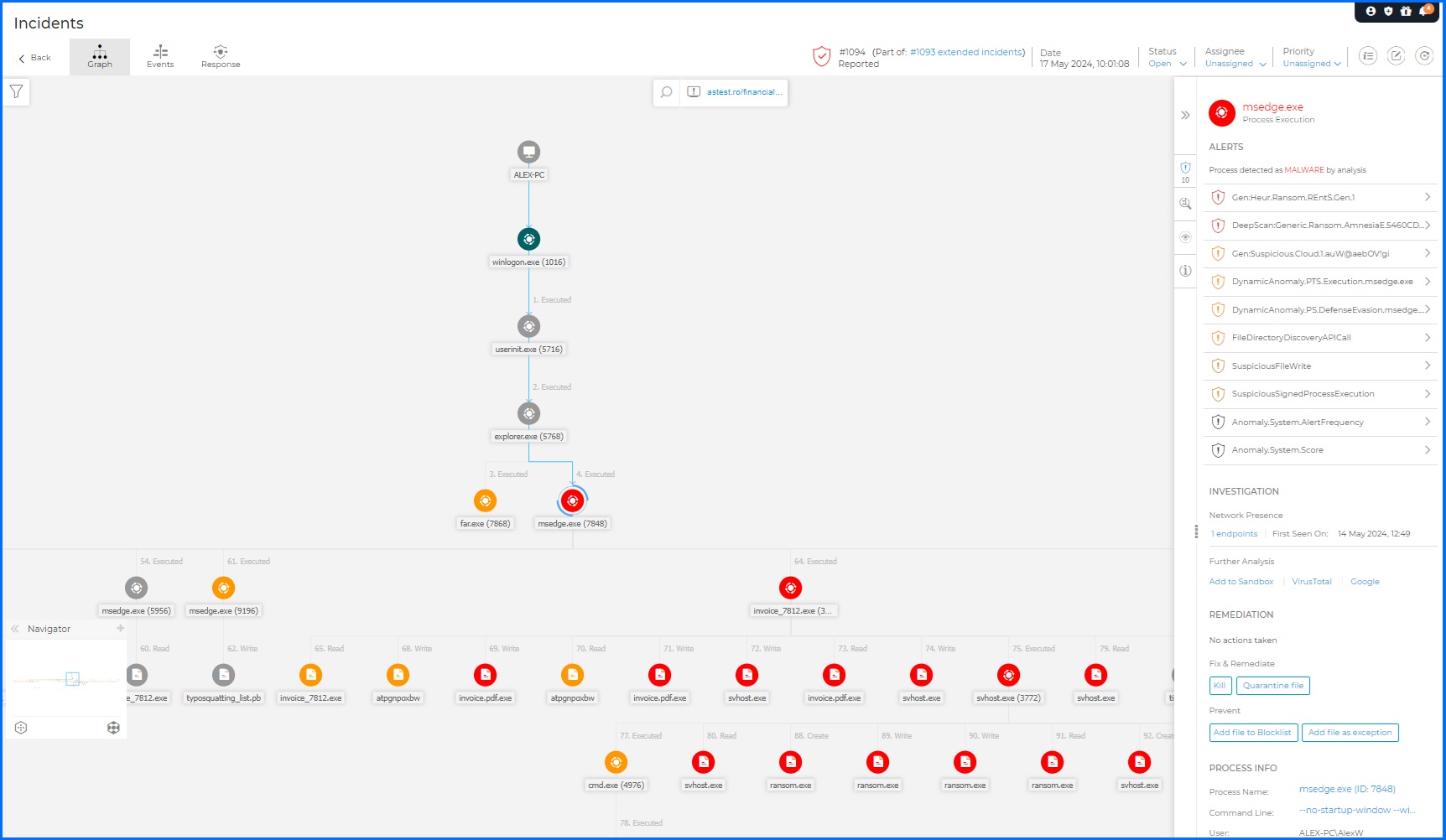
When you select a node within the graph, the Node Details panel provides a granular forensic breakdown organized into four categories:
Alerts: You can review every detection triggered on the selected node, including the specific Bitdefender technology involved (e.g., HyperDetect, ATC), the exact reason for the alert, and a precise timestamp.
Investigation: This section allows you to pivot from local data to global intelligence. You can identify other endpoints where the threat was spotted, submit files to the Sandbox Analyzer, or perform external lookups via VirusTotal and Google. For host-level nodes, you can instantly trigger an Investigation Package or pivot to Live Search for real-time process queries.
Remediation: You can take decisive action directly from the graph. Beyond reviewing automated actions, you can manually isolate the host, install missing patches, or establish a Remote Connection. You also have single-click options to Kill processes, Quarantine files, or add entities to your Blocklist or EDR Exclusions.
Details: You get access to deep technical metadata tailored to the node type.
DEVICE: Endpoint name, IP/MAC addresses, and active security policies.
PROCESS: Full command line arguments, parent-child relationships, and execution context.
FILE: File paths, MD5/SHA256 hashes, and digital signature validity.
REGISTRY: Specific keys, values, and data modified during the event.
Imagine you receive an alert regarding a suspicious PowerShell command. By opening your RCA graph, you can trace the execution chain backward to uncover the true origin. Your visualization might reveal outlook.exe spawning winword.exe, which then executes cmd.exe to run an encoded PowerShell script. By selecting the Process node, you can verify the full command line in the Details tab. If confirmed malicious, you can use the Investigation tab for a VirusTotal lookup and the Remediation tab to instantly Kill the process and Add it to your Blocklist across the entire organization.
Extended Root Cause Analysis
While standard RCA reconstructs events on a single host, Extended Root Cause Analysis provides the master visual graph for cross-platform investigations. This is the heart of your Organization Incidents, utilizing the correlation engine to bridge telemetry from every corner of your infrastructure. With an XDR subscription, you move beyond endpoint logs to include deep insights from Network, Identity, Cloud, and Productivity Sensors.
The Extended RCA graph provides an interactive map of the attack's lifecycle across your organization. You can pivot seamlessly from facts to context; for instance, selecting the Initial Access stage will automatically highlight every connection and element involved in the adversary's point of entry, regardless of which sensor captured the data.
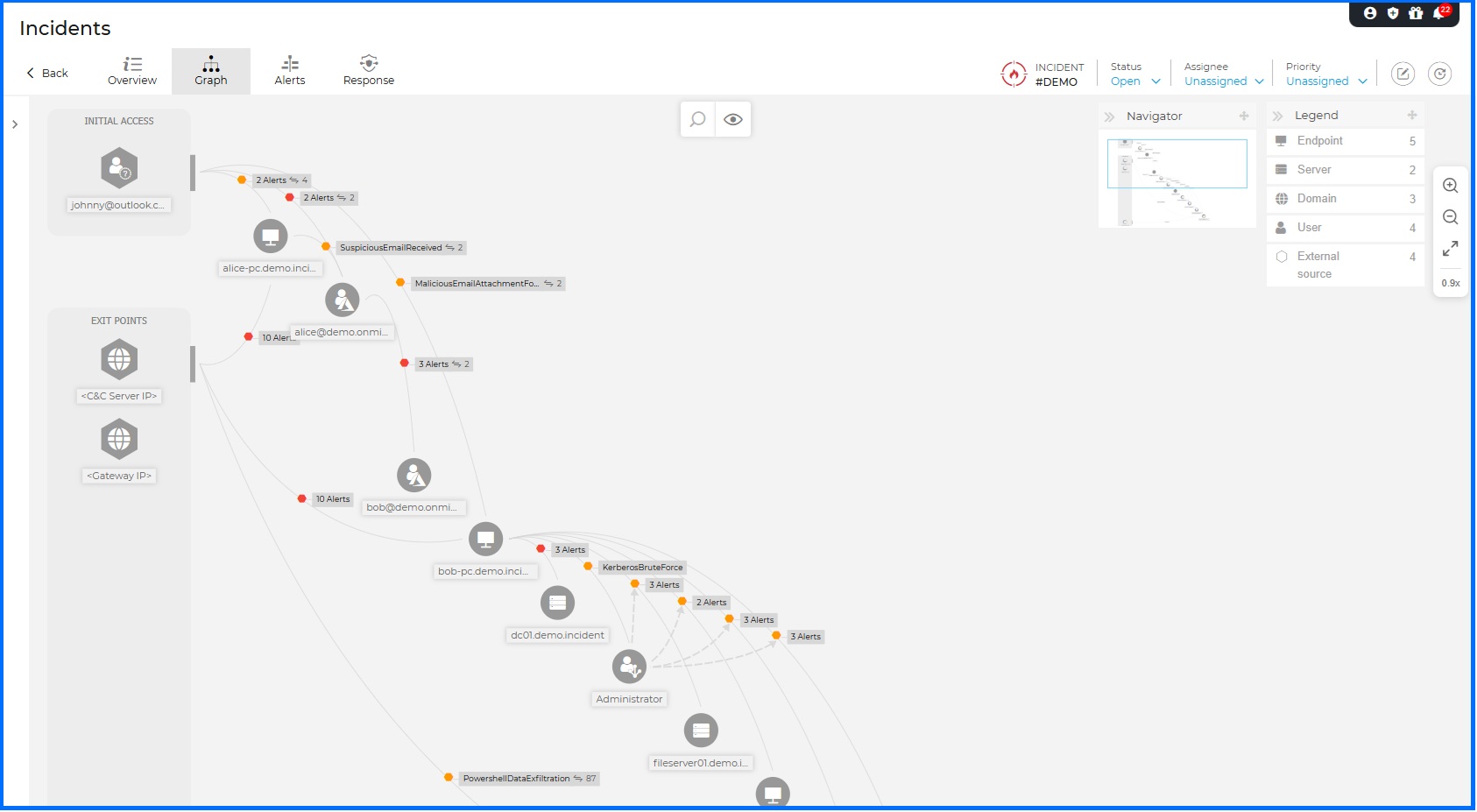 |
To accelerate your analysis, the Node Details panel organizes critical information into four strategic areas:
General: Provides the essential infrastructure context for the selected entity. You can view IP/MAC addresses, active services, associated email accounts, and cloud resource details.
Response Actions This tab empowers you to act across the entire attack surface, organized into three logical phases:
Investigation & Containment: This phase provides you with the necessary actions to stop the threat from spreading further. You can collect Investigation Packages, isolate affected hosts, or perform broad IoC scans. You can also pivot to Live Search for real-time visibility or check entity reputation via Bitdefender IntelliZone and VirusTotal.
Mitigation & Remediation: Direct actions to neutralize active threats, including triggering malware scans, disabling compromised user accounts, or forcing credential resets. All response actions are detailed in the Threat Response article.
Hardening & Refinement: Proactive steps to prevent recurrence, such as initiating Risk and Patch scans or adding specific IPs and URLs to your Exception lists.
Alerts: Detections are grouped by severity by default to help you prioritize. You can reorganize these alerts by timeline, kill chain phase, or sensor type to better understand the attack's momentum.
Interactions:This section maps the relationships between nodes, listing every entity that interacted with the selected target. This is vital for uncovering lateral movement and understanding how the threat migrated through your network.
Imagine your Network Sensor detects suspicious Command & Control (C2) traffic originating from multiple users. By opening the Extended RCA graph, you discover that a PowerShell execution on two different endpoints triggered this traffic. The cross-platform view reveals a broader campaign: your Office 365 Sensor shows these users were part of a spear-phishing wave targeting dozens of colleagues. To stop the attack at its source, you can click the Email node and use the Response Actions tab to Delete similar emails organization-wide, while simultaneously isolating the infected hosts and disabling the compromised user identities.
Response
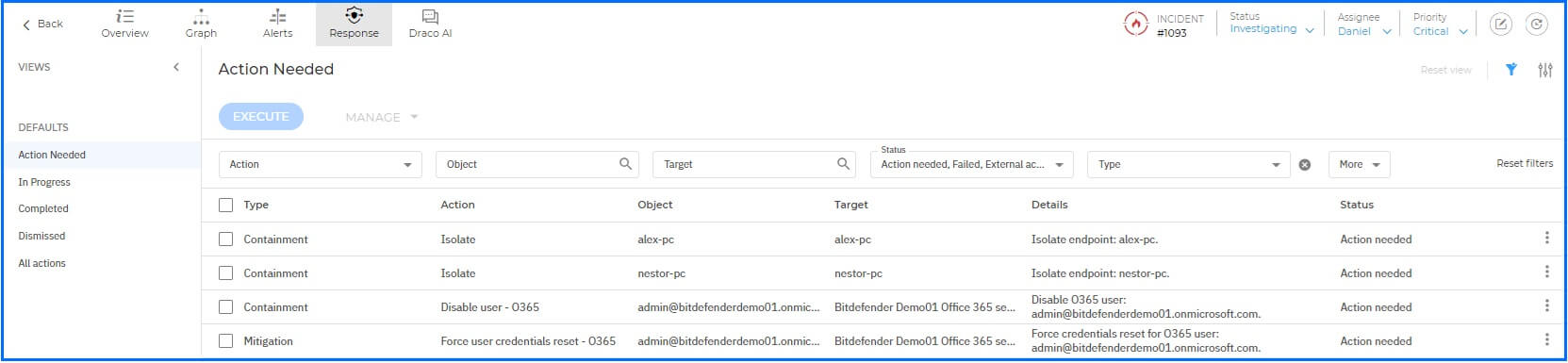
For every incident, you have access to a centralized Remediation section designed to track and execute your defensive strategy. This area organizes actions into three categories: those requiring your immediate attention, actions already executed by the system or your team, and those you have dismissed. Your available response toolkit expands dynamically based on your deployed Sensors.
For your Endpoint Incidents, you can take immediate containment steps by isolating the host from the network, terminating malicious processes, or blocking suspicious files. If you have a Patch Management subscription, you can also remediate the vulnerability that allowed the initial access by deploying missing patches. For environments using Identity-based sensors (like the Active Directory Sensor), you can neutralize threats by disabling compromised accounts or forcing password resets. You can find exhaustive details on all response capabilities in the Threat Response article.
Remote Connection
When you need to perform deep-dive forensics or manual remediation on a Windows-based endpoint, you can establish a Remote Connection directly from the incident details panel. This opens a secure, interactive EDR Terminal Session, providing you with a specialized command-line environment to interact with the target system in real-time.
You have access to a suite of custom-built shell commands specifically engineered for security tasks. These allow you to bypass standard UI limitations and perform surgical remediation directly on the host operating system.
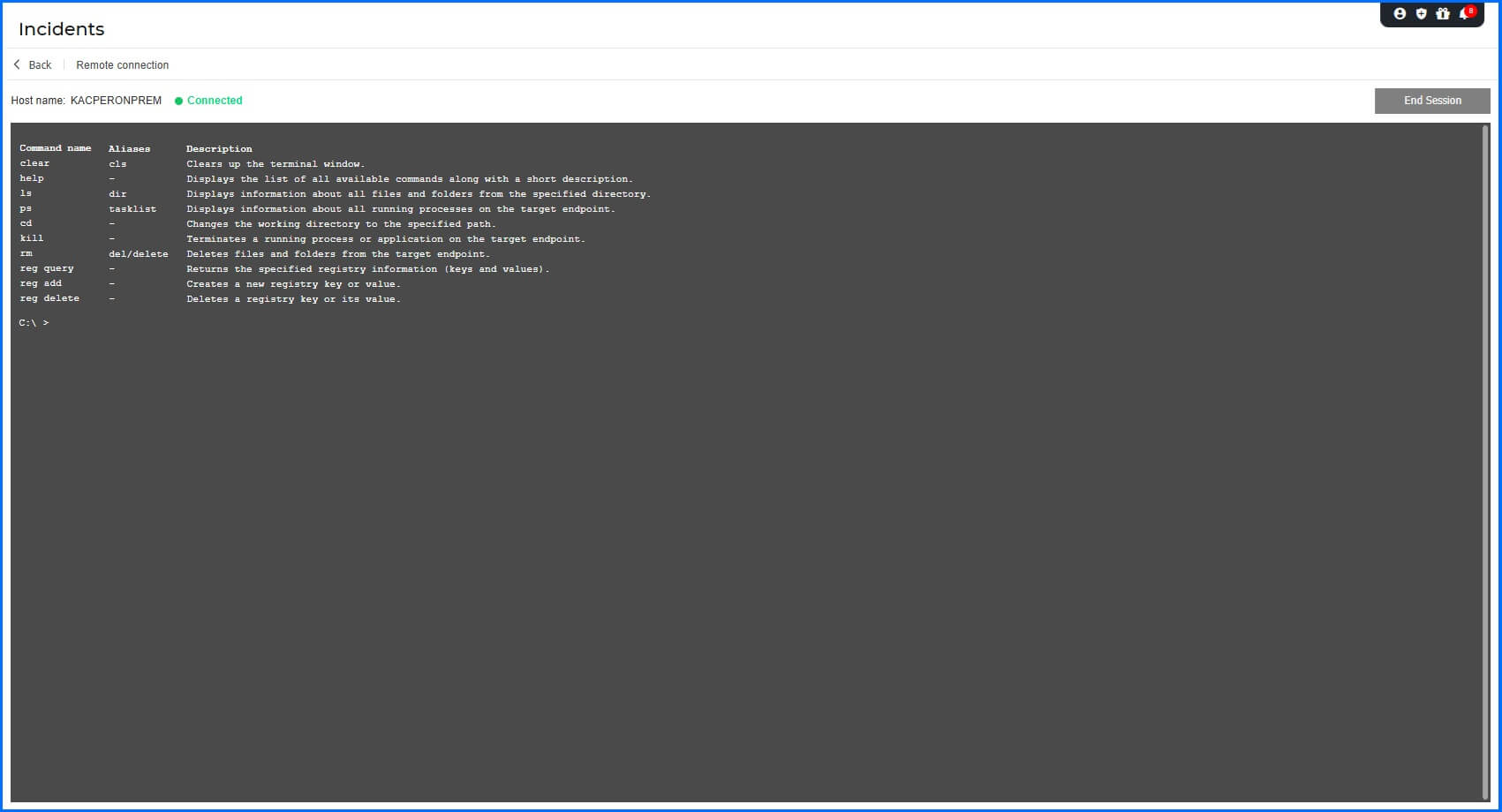 |
For example, you can use the ps or tasklist command to identify a suspicious running process and obtain its Process ID (PID), then immediately use the kill [PID] command to terminate the threat.
Detailed information about terminal session commands can be found in the Bitdefender Support Center here.
Forensics
When you need to capture a snapshot of a compromised system for deep-dive evidence preservation, you can create an Investigation Package. This forensic tool is available for Windows, Linux, and macOS endpoints and allows you to collect volatile data and critical system logs that are essential for reconstructing adversary behavior.
Depending on the target operating system, the package captures vital forensic artifacts such as memory dumps, active network connections, running processes, and event logs. This ensures you have the artifacts required for a thorough post-mortem analysis or to support legal and compliance requirements.
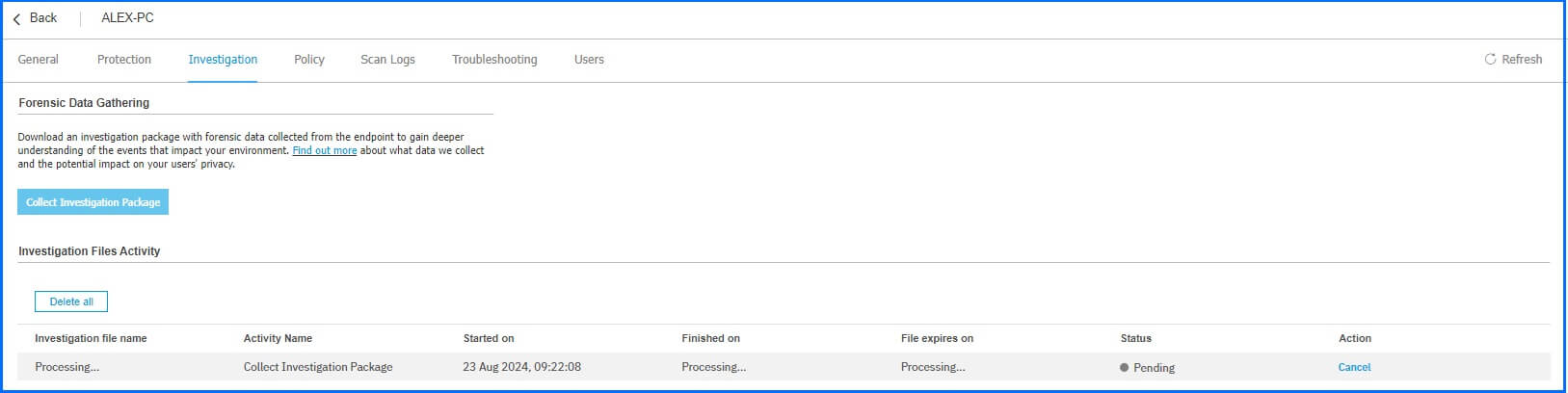
You should prioritize the collection and download of these packages during an active investigation, as investigation files have a data retention period of 24 hours. To ensure the integrity of your evidence, GravityZone encrypts all forensic data in transit, at rest, and in use.
Hands-on Scenarios
The following scenarios demonstrate how you can solve specific challenges using the forensic and investigation capabilities of GravityZone.
Rapid Incident Triage and Reporting
When a high-severity incident is detected, you are often under immediate pressure to provide an executive summary and a technical baseline for the SOC team. Use Incident Advisor to bypass manual data correlation; it provides an automated, human-readable narrative of the "What," "Why," and "How." To take action, select the incident in your dashboard and review the automated summary in Incident Advisor. Use the integrated response actions to block malicious files, delete phishing emails, or isolate affected hosts, then use the Generate Report function to export an executive-ready PDF report in seconds.
Identifying Attack Vector and Lateral Movement
An alert may show a malicious payload on an endpoint, but you need to find the initial point of entry and determine if the threat has spread to other hosts. Use Root Cause Analysis (RCA) to follow the execution chain backward and Extended RCA to visualize the cross-platform scope across your entire organization. To perform this, open the RCA graph and follow the Critical Path to identify the parent process. Pivot to the Extended RCA graph to see if the attacker used stolen credentials to access other endpoints or cloud resources.
Real-Time Containment and Evidence Capture
When you detect a suspicious live script running on a critical server, you must stop the threat immediately while preserving forensic evidence for later analysis. By combining network isolation, real-time terminal remediation, and forensic package generation, you can neutralize the threat without losing volatile data. Begin by Isolating the endpoint in the incident graph to block lateral movement attempts. Open a Remote Connection and use the kill command with the identified PID to terminate the malicious process. Finally, navigate to the Forensics section to generate an Investigation Package to capture a memory dump and system logs before they are overwritten.
Recommended Content
To learn more about the technologies included in the Detection layer we recommend reading the next article Live Search.
More Resources
Watch our demo to see Incident Advisor in action: YouTube Demo
GravityZone Incident Guided Tour: Incident Guided Tour
Discover the Detection, Response, and Incident Management full potential with our dedicated video masterclasses: Masterclass