Microsoft Intune Sensor – Bitdefender TechZone
2026-09-16
Microsoft Intune Sensor detects app deployment, policy tampering, root certificate planting, and BitLocker ransom encryption via Graph API—signals invisible to identity logging. Correlates with endpoint, network, and identity telemetry for XDR-driven incident response.
Stolen credentials tie an intrusion together. An attacker with a Microsoft Intune administrator account gains control over a management plane that pushes software and configurations to every enrolled device. The same console used to deploy an app can, in the wrong hands, push malware, weaken security policies, plant root certificates, or rewrite disk-encryption settings—all without touching a sign-in log or a domain controller. The Microsoft Intune Sensor watches the Intune environment itself, turning changes to apps, policies, device ownership, and encryption into real-time detections.
What the Microsoft Intune Sensor Collects and Detects
The Microsoft Intune Sensor monitors actions within the Intune environment, covering device ownership changes, policy assignments, and Intune app creation. It reaches Intune through the Microsoft Graph API with no appliance to deploy and no agent to install, and everything it detects feeds the GravityZone Correlation Engine for XDR alongside endpoint, network, identity, and cloud telemetry.
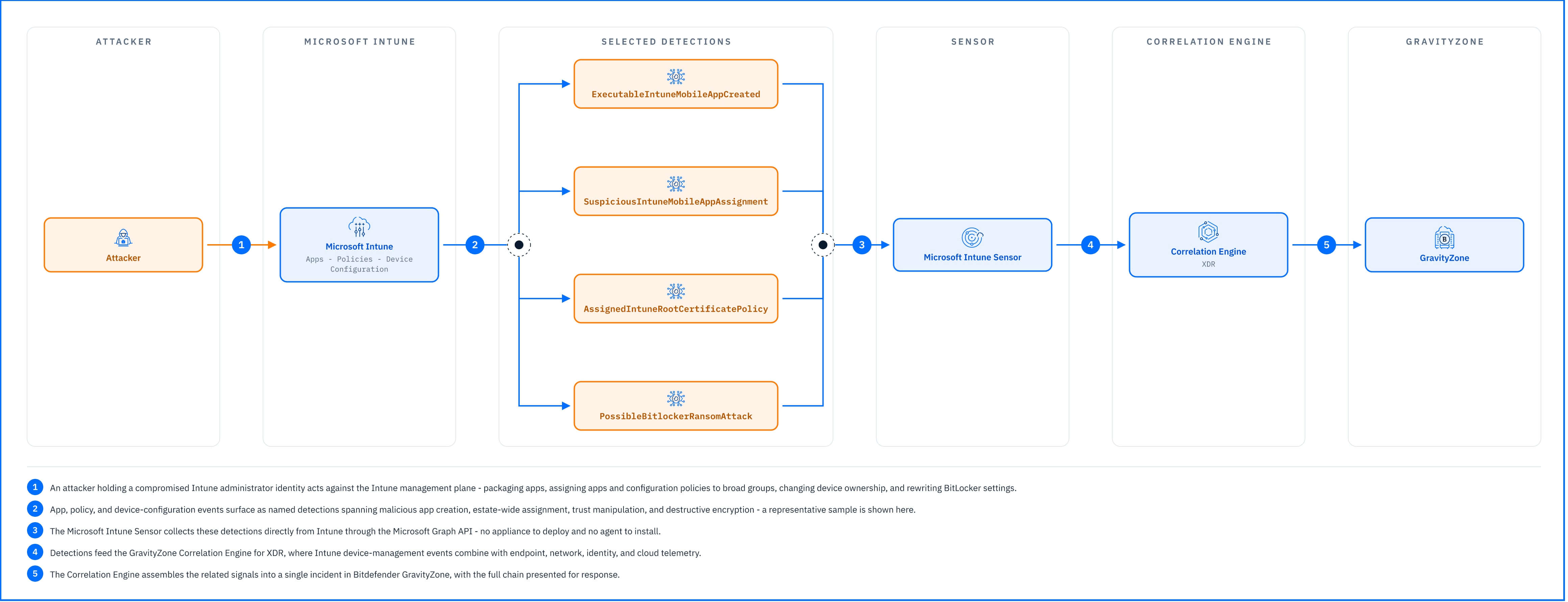 |
Malicious application deployment. ExecutableIntuneMobileAppCreated is raised when a new Intune app is created carrying attributes that allow it to run code on a managed device—such as install or uninstall command lines, setup file paths, detection or requirement rule scripts, or specific filenames. URLIntuneMobileAppCreated is raised when an app is created with its AppUrl property populated, pointing managed devices potentially attacker-controlled.
Policy tampering and broad assignment. SuspiciousIntunePolicyAssignment is raised when an Intune policy is assigned to All Users or All Devices. This applies an estate-wide blast radius to system configurations rather than apps, allowing an attacker to weaken security controls everywhere in a single action.
Trust manipulation. CreatedIntuneRootCertificatePolicy is raised when a device configuration utilizing a TrustedRootCertificates type is created, while AssignedIntuneRootCertificatePolicy triggers when a recently created Trusted Root Certificate policy is assigned across multiple devices. Together, these alerts signal an attacker planting an untrusted Certificate Authority—enabling man-in-the-middle traffic interception for every device that receives the payload.
Destructive encryption and recovery-key exposure. PossibleBitlockerRansomAttack is raised when an Intune intent configures dangerous BitLocker settings that encrypt a device with a key that is difficult or impossible to restore. IntuneManagedMacOSDeviceRecoveryKeyRequested is raised when the recovery key of an Intune-managed macOS device is requested, exposing the secret that would otherwise let the organization recover a locked disk.
Device boundary and location changes. IntuneDeviceOwnerTypeChanged is raised when an endpoint transitions between corporate and personal ownership, altering applied security policies and potentially removing the device from an active security baseline. IntuneManagedDeviceLocationRequested is raised whenever a device's physical location is requested, tracking potential administrative misuse or endpoint reconnaissance.
Detections in Practice
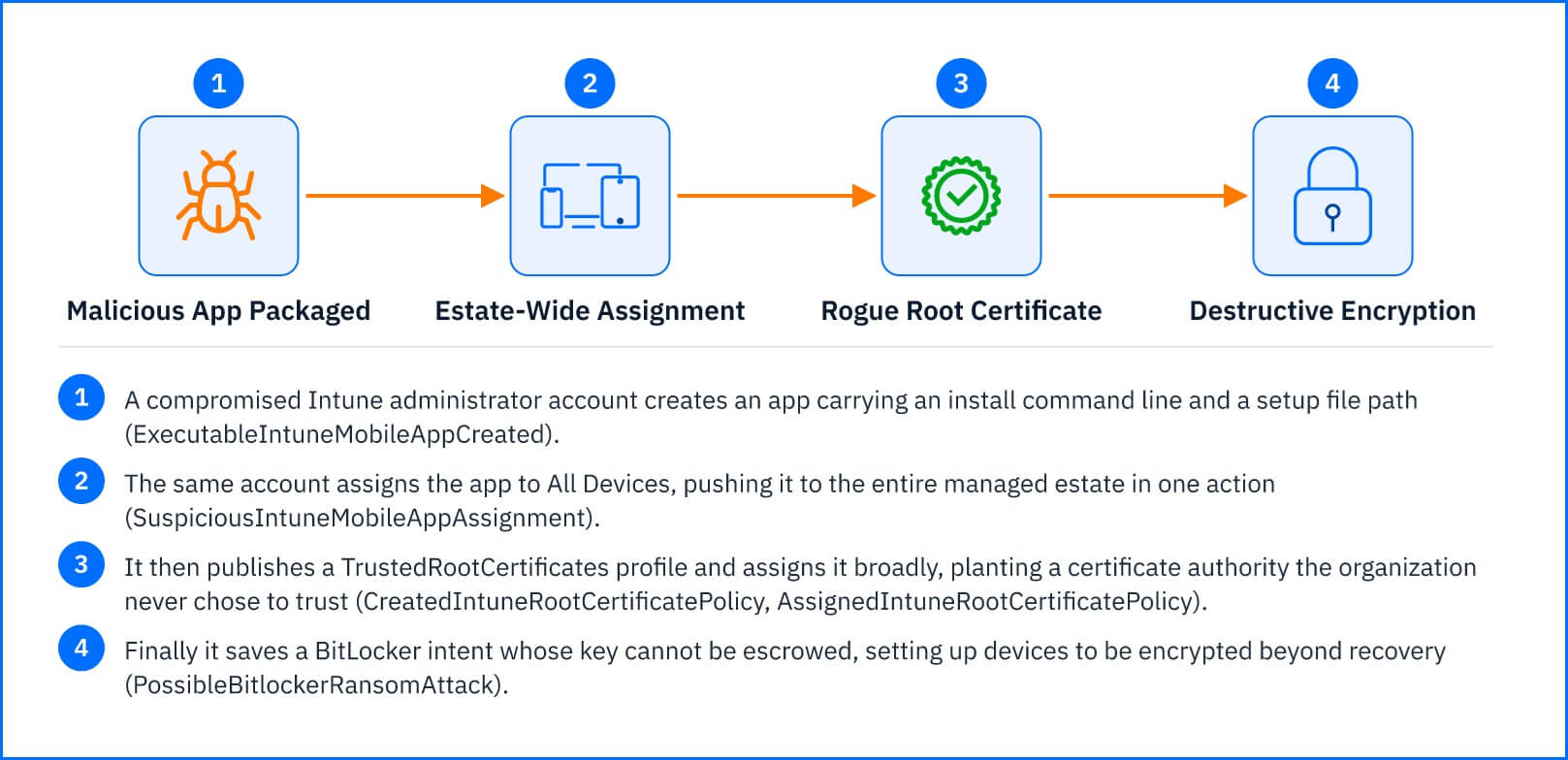
It rarely looks like an attack at first. An administrator account—or a token lifted from one—creates a new Intune app with an install command line and a setup file path (ExecutableIntuneMobileAppCreated). On its own, that is an ordinary packaging task. Minutes later, the same account assigns the app to All Devices (SuspiciousIntuneMobileAppAssignment), publishes a TrustedRootCertificates profile and assigns it broadly (CreatedIntuneRootCertificatePolicy, AssignedIntuneRootCertificatePolicy), and finally saves a BitLocker intent whose key cannot be escrowed (PossibleBitlockerRansomAttack).
Five changes, one account, a few minutes apart. Correlated with the identity alert that flagged the account earlier and the endpoint telemetry from the first devices to pull the package, these become a single incident with a clear origin
 |
Response Actions
Responding to an Intune-based attack runs on two tracks:
Identity Containment: The compromise of the initiating account is handled via your identity integration—such as using the Azure Active Directory Sensor to disable or reset an Entra user account, or using the Active Directory Sensor to disable a synced on-premises account.
Object Remediation: The unauthorized changes—including the app, assignment, configuration profile, or encryption intent—must be manually reverted directly in the Microsoft Intune admin center, as that is the sole plane where those objects exist
Deployment and Configuration
The Microsoft Intune Sensor requires no appliance or agent: it connects directly to Intune through the Microsoft Graph API, authenticated with an application registered in Microsoft Entra ID. Prerequisites, the Graph API permissions the sensor relies on, and full integration steps are in the Bitdefender Support Center article The Microsoft Intune sensor.
Hands-on Scenarios
The following scenarios demonstrate how you can solve specific challenges using the Microsoft Intune Sensor.
Catching a Malicious App Pushed to the Whole Estate
Creating an Intune app with executable properties - such as install or uninstall command lines, setup file paths, or custom detection and requirement scripts - trips ExecutableIntuneMobileAppCreated. Similarly, populating an app's AppUrl property trips URLIntuneMobileAppCreated. When paired with SuspiciousIntuneMobileAppAssignment on the same app - especially if initiated by an account that does not typically manage applications - this signals an attacker weaponizing Intune as a mass-distribution vector.
Remediation:
Remediate Intune Objects: Remove the assignment and delete the app directly within the Microsoft Intune admin center.
Contain the Identity: Disable or reset the compromise account through your identity integration.
Clean Up Endpoints: Enforce endpoint-level software removal across targeted devices as a separate step, since an Intune uninstall command will not reach endpoints that have dropped offline.
Stopping a BitLocker Ransom Setup Before Keys Rotate
PossibleBitlockerRansomAttack triggers when an Intune intent configured dangerous Bitlocker encryption settings that could be used for a ransom attack, while high volume of IntuneManagedMacOSDeviceRecoveryKeyRequested alerts indicates recovery keys are being harvested ahead of a similar move on macOS devices. Treat this as an in-progress destructive attack: disable the account behind the intent through your identity integration, revert the disk-encryption policy in the Intune admin center before it hits remaining endpoints, and verify that original recovery keys are still securely escrowed in Microsoft Entra ID. Any device that has already re-encrypted under the malicious policy must be handled individually.
Detecting a Rogue Root Certificate Rollout
AssignedIntuneRootCertificatePolicy targeted at a broad group signals an attacker planting an unauthorized certificate authority—laying the groundwork to intercept TLS traffic across every receiving endpoint. Immediately remove the assignment and delete the TrustedRootCertificates profile inside the Microsoft Intune admin center, then contain the identity behind its creation via your identity integration. Because the rogue certificate remains trusted on devices that already processed the payload until a removal action reaches them, track every device in the target group to confirm the policy withdrawal successfully applied.
Common Mistakes and Misconceptions
“The sensor blocks the app or policy from rolling out.”
It does not sit in the Intune deployment path. The app installs and the policy applies on Intune’s own schedule; the sensor detects the change and reports it, and any response is taken afterward from the GravityZone console or in Intune once the Correlation Engine has assembled the picture.
“The Intune Sensor can roll the change back for me.”
It has no response actions of its own. Reverting a malicious app, assignment, configuration profile, or encryption intent is done in the Microsoft Intune admin center, the only place those objects live. Acting on the account behind the change uses the Azure Active Directory or Active Directory Sensor’s actions, not the Intune Sensor’s.
“This is already covered by the Microsoft Entra ID sensor.”
Different surface. The Entra ID sensor sees sign-ins, directory objects, and role assignments; the Intune Sensor sees device management, app packages, configuration profiles, ownership changes, and BitLocker intent. One stolen administrator token often has rights on both, and an attack that starts as an anomalous sign-in in Entra ID can continue as an app rollout in Intune that the Entra ID sensor never sees.