Azure Active Directory Sensor – Bitdefender TechZone
2026-09-24
Azure AD Sensor collects sign-in and directory activity via Graph API and Event Hubs, detects brute force, impossible travel, privilege escalation, MFA bypass. Correlates signals into incidents. Response actions disable users, reset passwords, and mark compromised in Entra ID.
Stolen credentials tie an intrusion together, and in Microsoft Entra ID (formerly Azure AD), the sign-in log is where that compromise first surfaces. An attacker who phishes, buys, or sprays their way to a valid password still has to authenticate before reaching a mailbox, a SharePoint site, or an Azure resource — and a successful sign-in looks identical whether it came from the account owner's laptop or an attacker’s machine. The Azure Active Directory Sensor watches that step, turning sign-in and directory activity into detections the moment they occur.
What the Azure Active Directory Sensor Collects and Detects
The Azure Active Directory Sensor collects and preprocesses data on users and groups from Microsoft Entra ID, covering sign-in activity and configuration changes. It reaches Entra ID through the Microsoft Graph API, with Azure Event Hubs as a recommended addition for faster event delivery, and everything it detects feeds the GravityZone Correlation Engine for XDR alongside endpoint, network, and cloud telemetry.
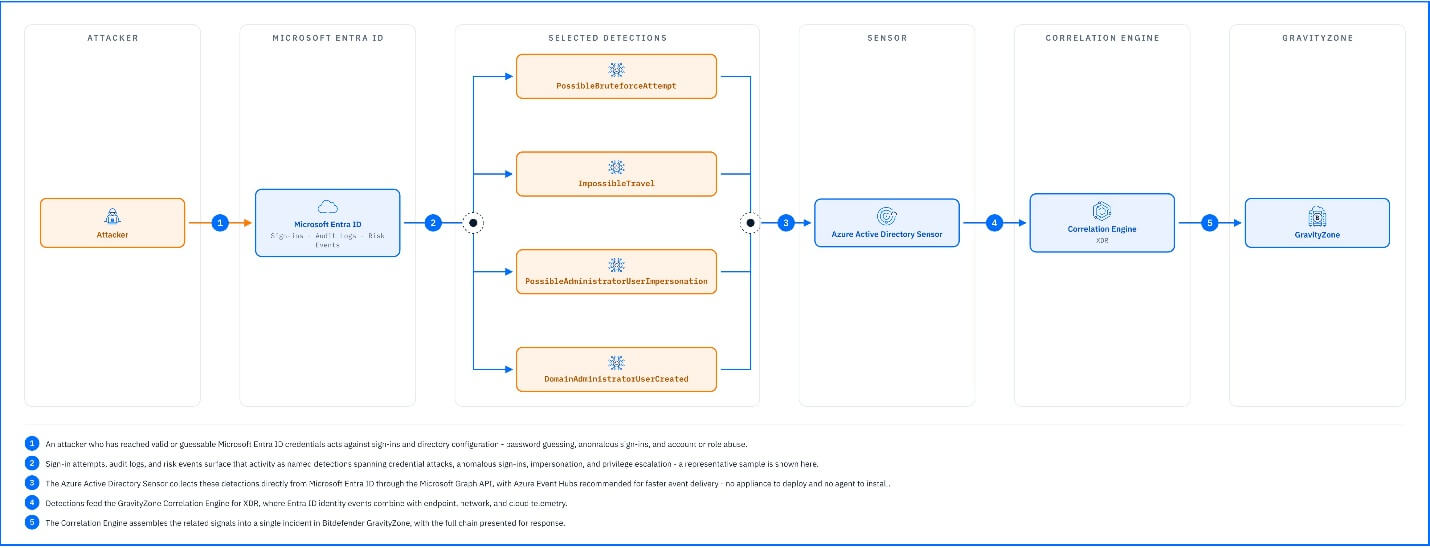 |
Credential attacks and suspicious sign-ins. The sensor tracks sign-in attempts by timestamp, location, and IP address to catch attackers hunting for valid accounts. PossibleBruteforceAttempt is raised when too many failed sign-ins from the same IP hit an account in a short window. AnonymousIPAddress flags sign-ins arriving through a VPN, proxy, or Tor exit node, the kind of address attackers use to hide where they are really connecting from, and MaliciousIPFoundInAlert is raised when an IP address in an already-triggered alert matches one that Bitdefender Threat Intelligence classifies as malicious. ImpossibleTravel catches sign-ins from places too far apart to have been reached by traveling between them, the classic trace of a stolen password being used alongside its legitimate owner.
Impersonation and administrative anomalies. PossibleAdministratorUserImpersonationByRenaming is raised when account changes, such as a display name or email edit, suggest someone is trying to pass as an administrator, and Anomaly.UserAdministrativeActivity shows when an account performs administrative actions that do not fit its normal behavior.
Persistence and privilege escalation. The sensor watches for attackers securing a permanent foothold once they are in. DomainAdministratorUserCreated is raised when a new user is added to the domain administrators group, the most direct route to standing access. HighPrivilegeRoleAssignedToNewUser catches a high-privilege role handed to an account that should not need it. Applications are the other route. SuspiciousAppCreated flags that registration, ApplicationGrantedGlobalAdministration is raised when an application is granted administrative rights over the tenant, and UnreasonablePermissionsAssignedToResource is raised when Domain Administrator rights are assigned to the service principal behind an app.
Weakening identity controls. MFAExceptionAdded and MFAExceptedIPRangeAdded are raised when an account or an IP range is excluded from multi-factor authentication, removing the check that would stop a stolen password from being used. IAMConfigurationModified is raised on changes to the identity and access configuration itself.
Detections in Practice
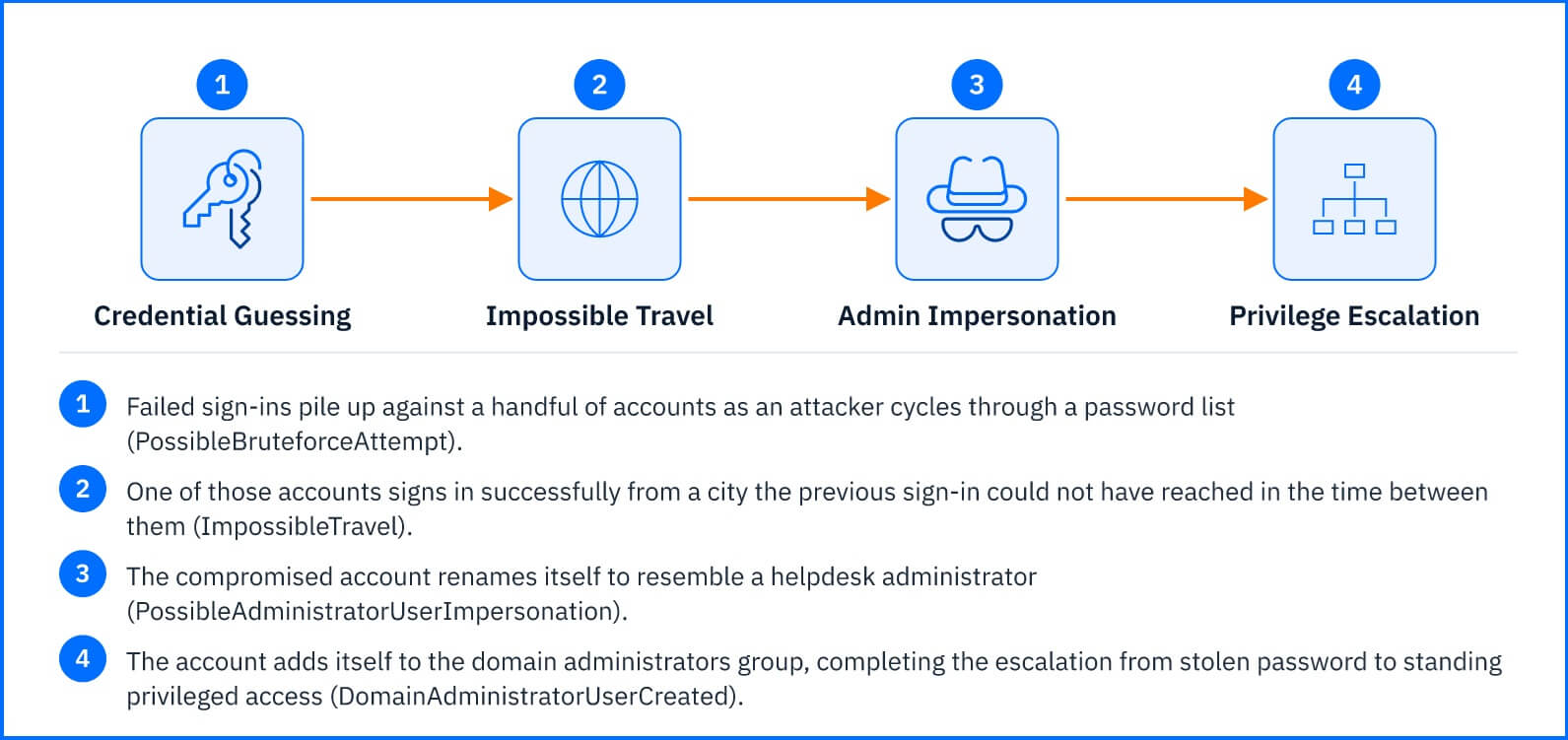
It usually starts quietly. Failed sign-ins pile up against a handful of accounts and PossibleBruteforceAttempt generates. One of those accounts then signs in successfully, from a city the previous sign-in could not have reached in the time between them: ImpossibleTravel. Neither alert is damning alone. A password gets mistyped; an employee gets on a plane. Then the attacker renames the account to resemble a helpdesk administrator (PossibleAdministratorUserImpersonationByRenaming) and adds it to the domain administrators group (DomainAdministratorUserCreated). Four data points, minutes apart. Correlated, they are one incident with a beginning and an end, drawn as a single graph instead of four alerts an analyst has to thread together by hand.
 |
Response Actions
The Azure Active Directory Sensor is one of the sensors that add response actions on the surface it covers. From within an Incident, the Threat Response actions available through the integration let you act on the account behind the activity: Mark as compromised sets the account to high risk in Microsoft Entra ID Protection, where the organization's own Entra administrator-configured policies determine what enforcement follows, Disable Azure user cuts off its access, and Reset Azure user password invalidates a credential the attacker has guessed or stolen. All three act on the user in Microsoft Entra ID, and note that anything the attacker already set up, such as a rogue application or a group membership, stays in place until it is removed separately in the Microsoft Entra admin center. The full action table is in the Threat Response article.
Deployment and Configuration
The Azure Active Directory Sensor requires no appliance or agent: it connects directly to Microsoft Entra ID through the Microsoft Graph API, with Azure Event Hubs recommended to avoid delays in retrieving security events. Prerequisites, the Graph API permissions the sensor relies on, and full integration steps are in the Bitdefender Support Center article The Azure AD sensor.
Hands-on Scenarios
The following scenarios demonstrate how you can solve specific challenges using Azure Active Directory Sensor.
Cutting Off a Brute-Force Sign-In Before It Escalates
Repeated failed sign-ins against an account, especially paired with AnonymousIPAddress or MaliciousIPFoundInAlert on the same source, trip PossibleBruteforceAttempt. Use Reset Azure user password on the targeted account to cut off the attempt before a guess succeeds. If the guessing may already have succeeded on an earlier attempt, check for any anomalous sign-ins from the same window before closing the incident, a reset alone does not revoke sessions already opened elsewhere.
Confirming an Impossible-Travel Account Takeover
ImpossibleTravel or AnomalousLoginLocation on a sign-in is the first sign of a possible takeover. Use Mark as compromised to set the account's Entra ID risk state to high, so the organization's own Conditional Access and remediation policies act on it, then Disable Azure user once takeover is confirmed. Disabling stops further use of the account but does not reset any application permissions or mailbox forwarding rules the attacker configured during the session, verify those separately in Microsoft Entra ID.
Stopping a Privilege Escalation to Domain Administrator
DomainAdministratorUserCreated or HighPrivilegeRoleAssignedToNewUser, especially correlated with an earlier credential alert on the same account, signals an attacker who has escalated privileges. Use Disable Azure user on the account that performed the privilege grant. The domain administrator group membership or role assignment itself is not removed by disabling the account, an administrator has to remove it manually in the Microsoft Entra admin center. Note that tickets already issued to the account before it was disabled remain valid until they expire.
Common Mistakes and Misconceptions
"This sensor covers on-premises Active Directory too."
It does not. The Azure Active Directory Sensor is a direct, cloud-only connection to Microsoft Entra ID through the Graph API. Organizations with a hybrid setup, where an on-premises domain syncs to Entra ID, need the separate Active Directory Sensor deployed on their domain controllers to cover that half of the environment.
"The sensor blocks the sign-in when it looks suspicious."
It does not sit inline on the authentication flow, it detects and reports. Response actions like disabling the account or resetting its password are taken from the GravityZone console after the Correlation Engine has assembled the detections into an incident, not automatically at sign-in time.
"Disabling the account closes the incident."
Disabling stops the attacker from signing in again, but anything the attacker did while the account was still active, a rogue application registration, a forwarding rule, or the domain administrator group membership itself, persists until it is removed in the Microsoft Entra admin center. The alert tells you which account to act on; cleanup happens in the platform.